How to Compress PDF Files & Reduce Size on Android
Struggling to email a large PDF? Learn how to smartly reduce PDF file size up to 90% offline without compromising readability.
We've all been there: you try to email a crucial PDF document, an eBook, or a scanned contract, only to be hit with a "File Too Large" error. Many email clients limit attachments to 20MB or 25MB, and large PDFs can quickly eat up your phone's storage.
While there are websites that offer to compress your PDFs, uploading sensitive documents (like financial records or IDs) to a random cloud server is a major security risk. Today, we'll show you how to intelligently compress your PDFs directly on your Android device, completely offline.
[!TIP] ⚡ Quick Answer: How to do it? Simple 3-step guide using SmartCompress - PDF Compressor offline:
- Launch App: Open the application on your Android device.
- Select Files: Choose the photos or documents from your gallery.
- Convert: Adjust settings and tap convert. The process completes locally on your phone to keep your files secure.
📊 Comparison: Local Android App vs. Online Converters
| Feature | BTTC Offline App | Online Web Tools |
|---|---|---|
| Internet Required | No (100% Offline) | Yes (Required) |
| Privacy & Security | Safe (Files stay on device) | Risk (Files uploaded to cloud) |
| Processing Speed | Instant (Device hardware) | Slow (Depends on upload speed) |
| File Size Limit | No Limit | Usually restricted (< 50MB) |
| Batch conversion | Supported for free | Often paid/pro feature |
The Secret to Smart Compression
A good PDF compressor doesn't just lower the quality indiscriminately. It uses smart algorithms to downsample excessively large images embedded in the document, remove unnecessary metadata, and optimize the file structure, all while ensuring the text remains perfectly crisp and readable.
Step-by-Step Guide
We'll use SmartCompress - PDF Compressor, an offline app designed to shrink PDFs by up to 90%.
1. Select Your PDF
Install the app and tap to browse your local files. You can select single documents or use the batch feature to select an entire folder of PDFs.
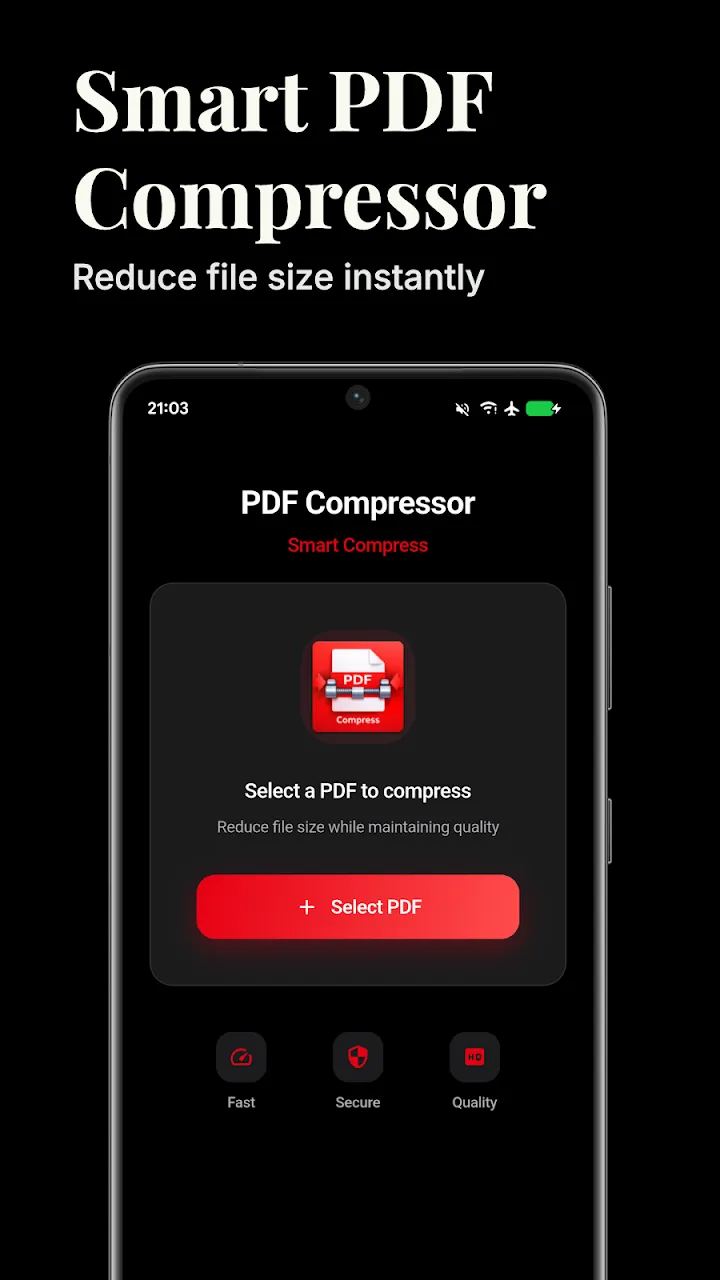
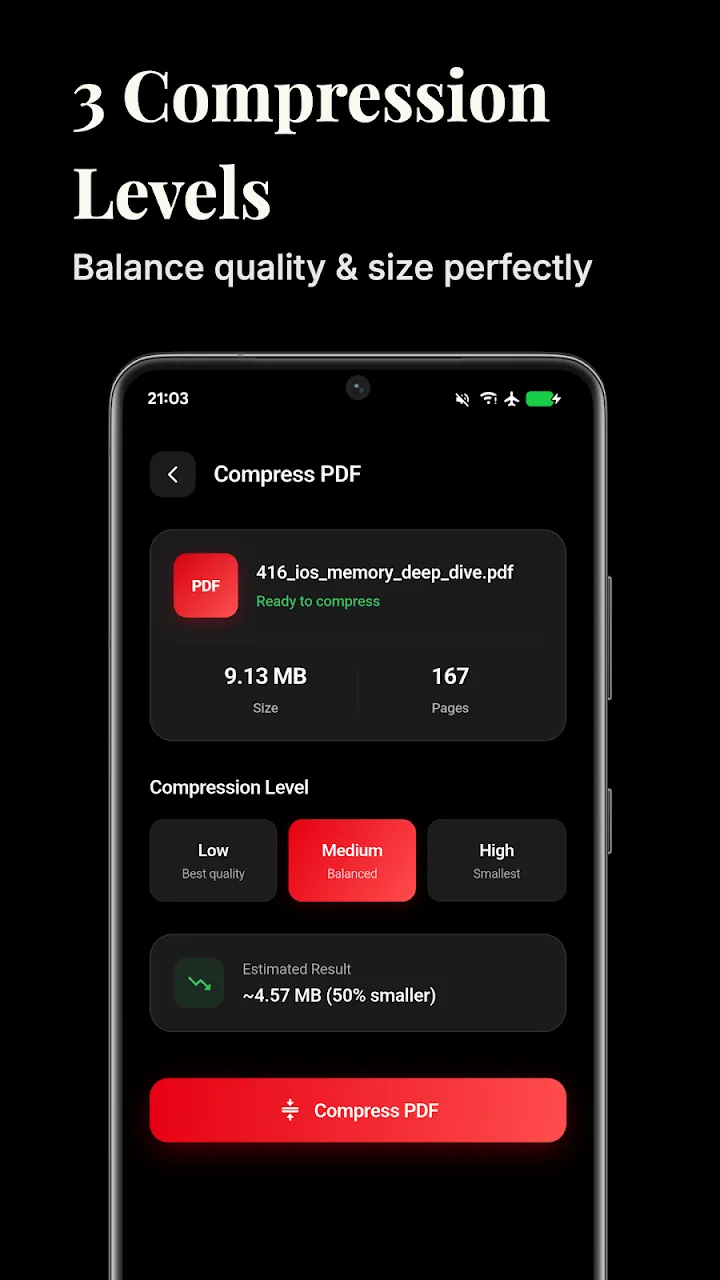
2. Choose Compression Level
The app offers multiple presets depending on your needs:
- Low Compression: Best for printing, keeps images very high quality.
- Medium Compression: The perfect balance for general sharing.
- High/Extreme Compression: Best for emailing large documents where text readability is more important than image fidelity.
3. Customize Settings (Optional)
If you need fine-grained control, you can enter the custom settings to manually adjust the target DPI (Dots Per Inch) and image quality percentage. This is ideal for professionals who need specific constraints.
4. Compress Offline
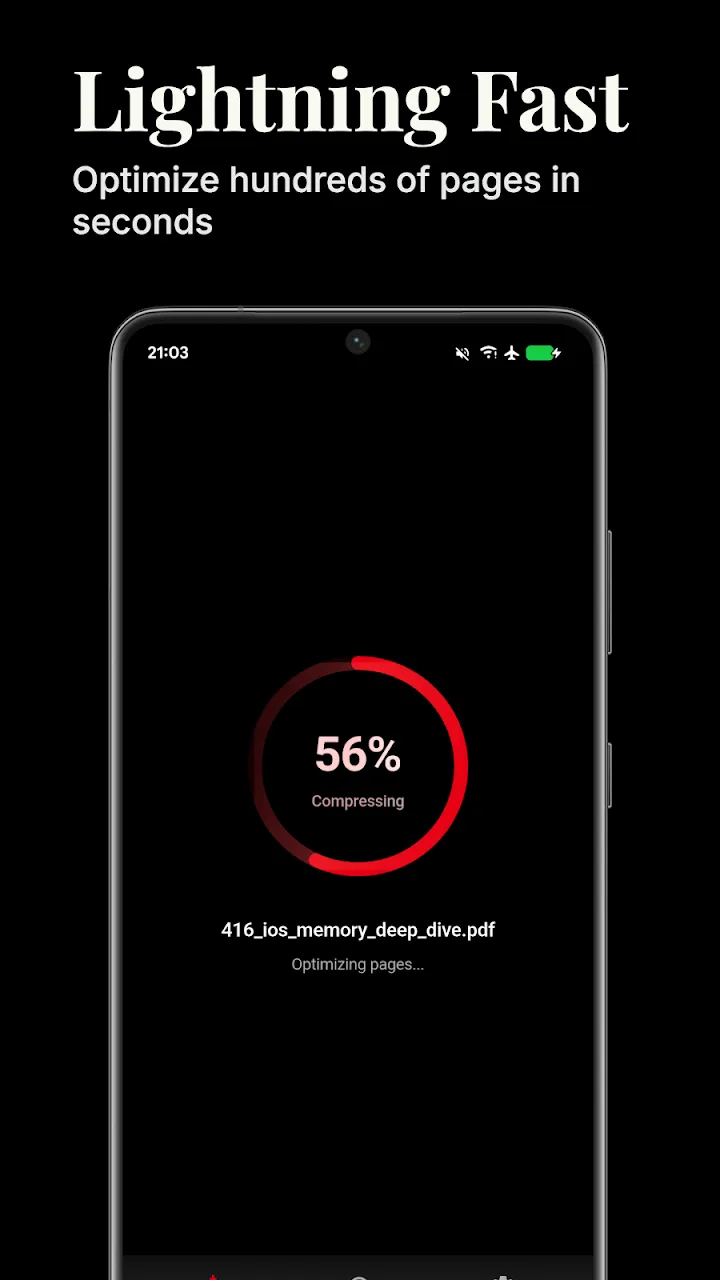
Tap the Compress button. Because the app works 100% locally, it securely processes your document on your phone's processor.
5. Compare and Share
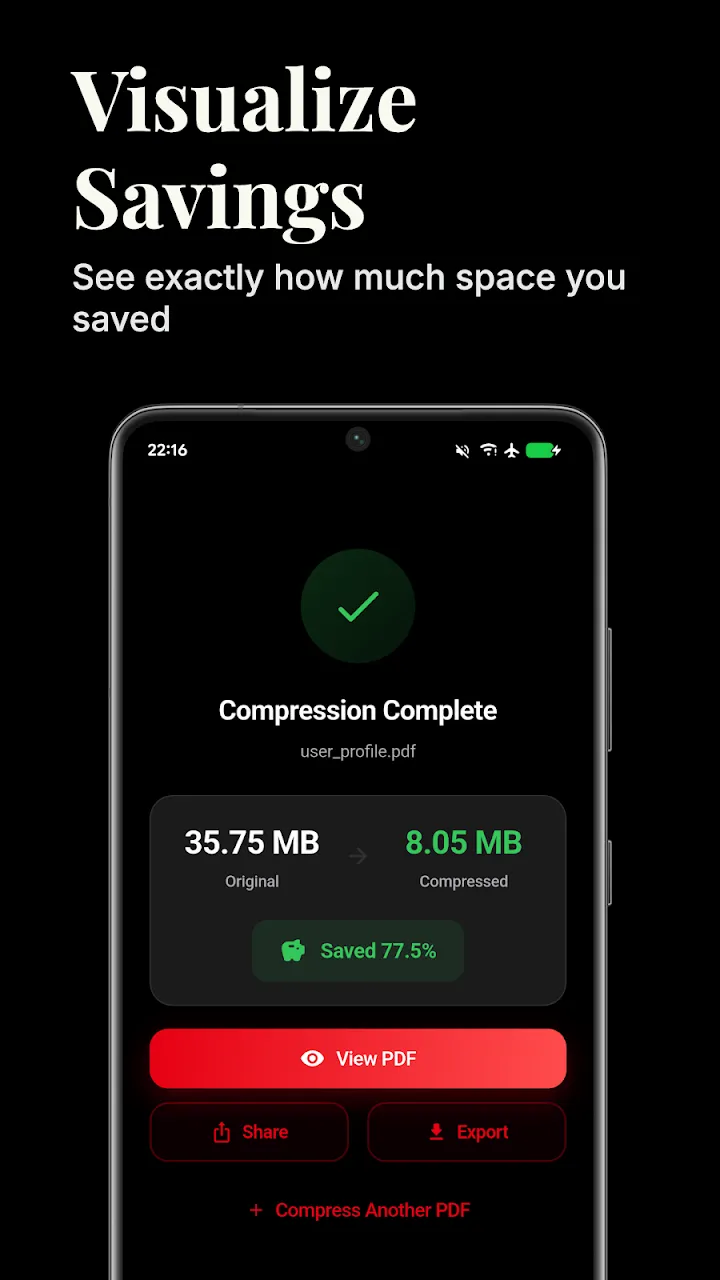
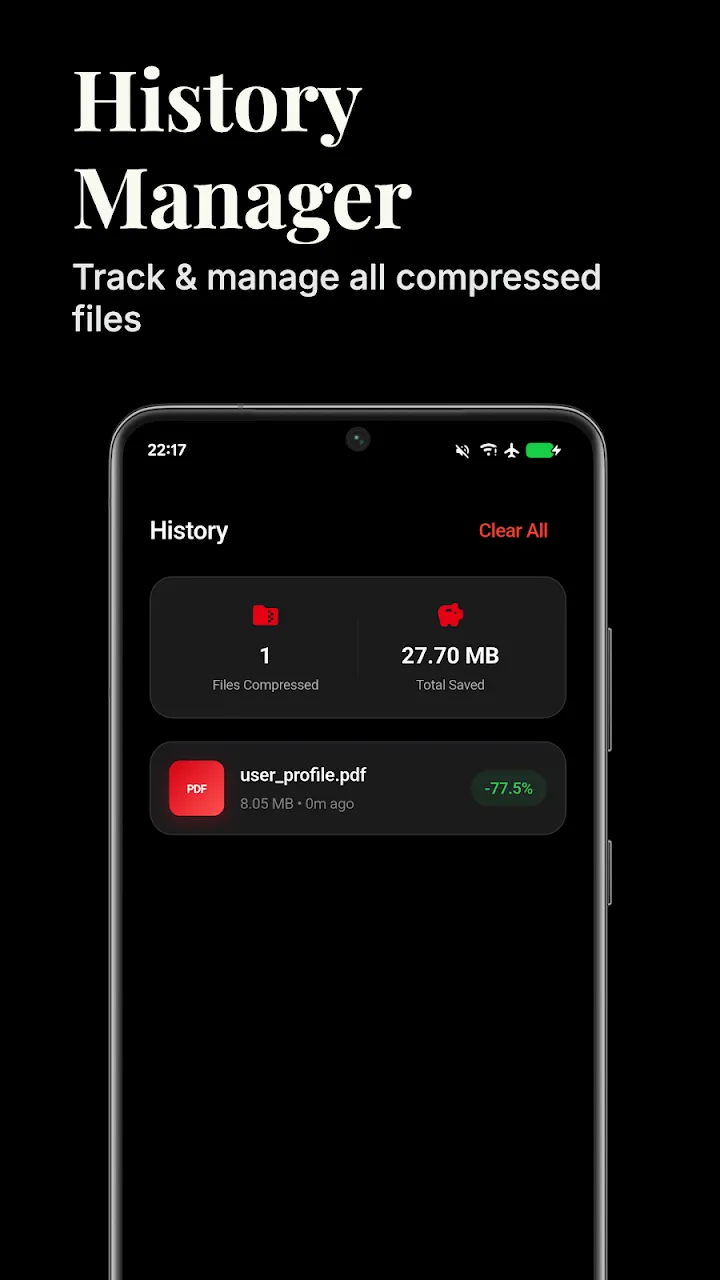
Once finished, the app will show you exactly how much space you saved. You can instantly open the compressed file to verify its quality, and then share it directly via email or WhatsApp without worrying about file size limits.
Conclusion
Sending and storing large PDFs shouldn't be a hassle or a security risk. By using an offline smart compressor, you can drastically reduce file sizes while keeping your private documents safely on your device.
📥 Download the App to Start Converting Offline
Ready to try it? Get the official app on the Google Play Store for secure, offline processing.